
Overview
The Close CRM integration allows EverSend to connect directly to your Close account, giving your team the ability to automate lead follow-up, qualification, and appointment booking based on changes inside Close.
Once connected, EverSend can sync:
- Leads
- Contacts
- Phone numbers
- Users
- Smart Views
The integration also allows EverSend to:
- Display SMS conversations on the Close lead timeline
- Record appointment details as notes on the Close lead timeline
- Automatically enroll leads into EverSend campaigns and AI agents
- Trigger automation based on lead status, opportunity stage, Smart View, or ownership changes in Close
Before You Start
Before connecting Close CRM, make sure you have:
- An active EverSend account
- A Close CRM account
- Permission to install applications within Close
Connecting Close CRM
Step 1: Open Integrations
Inside EverSend:
- Log in to your account
- Navigate to Integrations
- Select Close CRM
- Click Connect
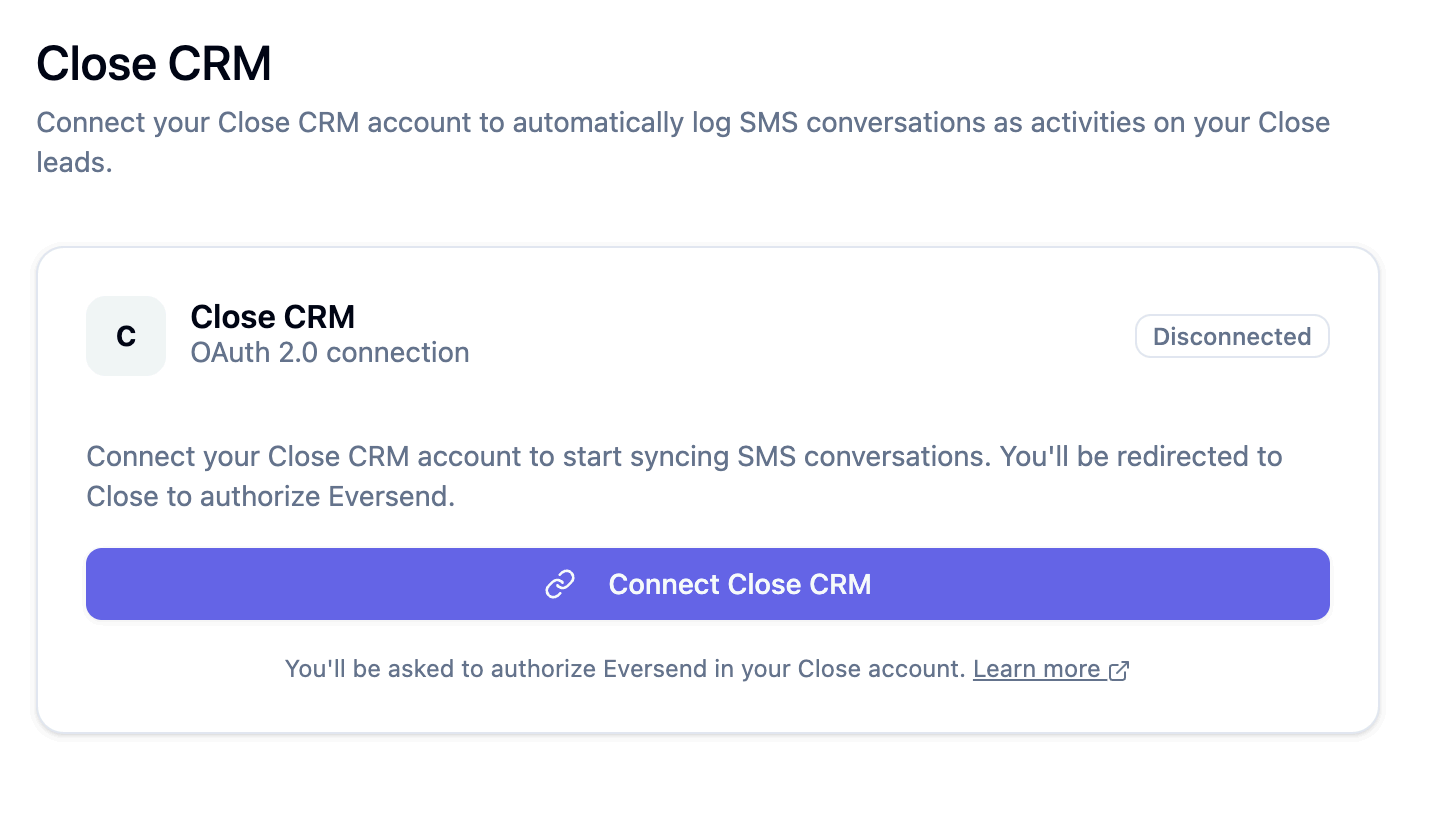
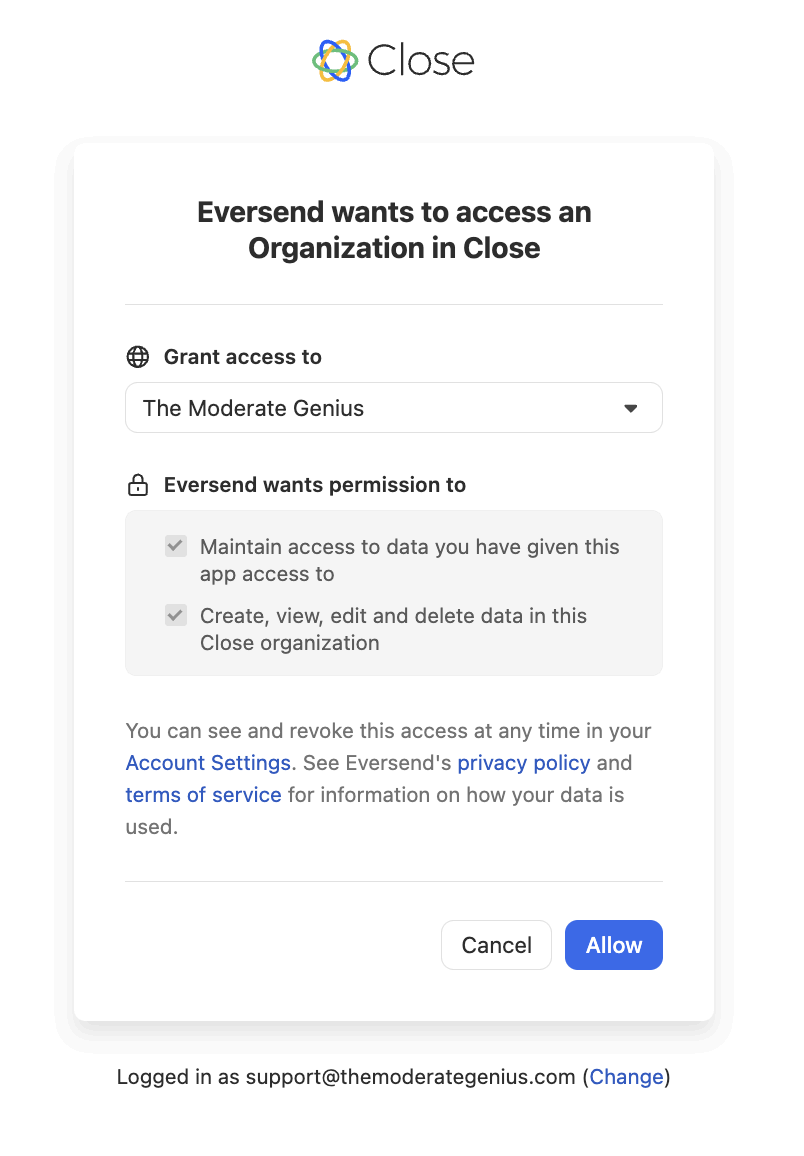
Step 2: Authorize Close
- Sign in to your Close account
- Review the requested permissions
- Click Authorize
- Return to EverSend
Once complete, your Close account will appear as connected.
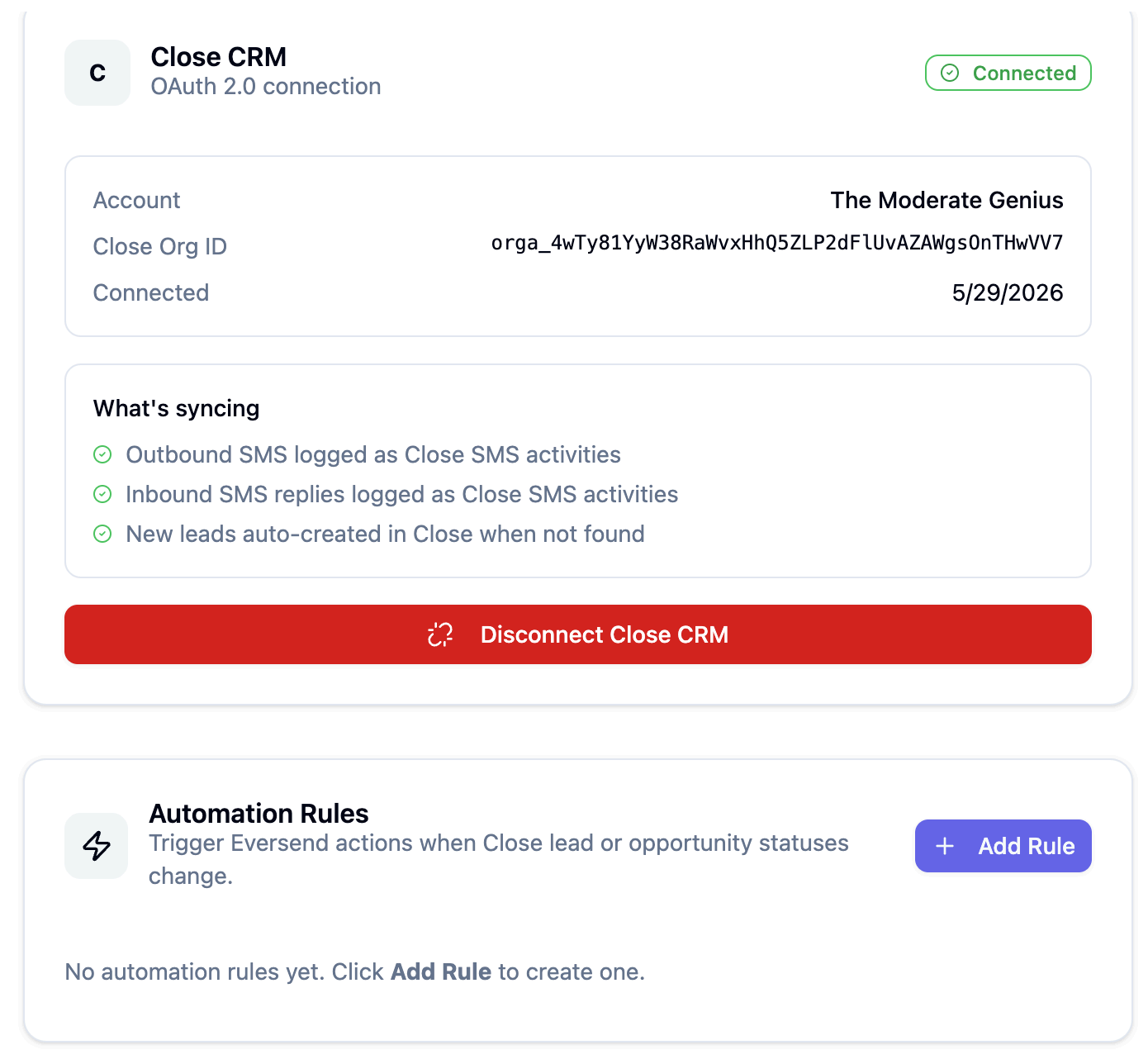
What EverSend Syncs from Close
After connecting, EverSend can access information from your Close account to power automations and AI conversations.
Leads & Contacts
EverSend syncs lead and contact information from Close to support AI conversations, campaign enrollment, and appointment booking.
This includes:
- Name
- Phone number
- Email address
- Lead information
Users
EverSend syncs user information to support ownership, routing, and handoff workflows.
Smart Views
EverSend can access Close Smart Views and segmentation data to support automation and lead routing.
Smart Views allow teams to organize and filter leads based on specific criteria inside Close. These Smart Views can then be used within EverSend automation rules to determine which leads should enter campaigns, AI agents, or follow-up workflows.
Automation with Close CRM
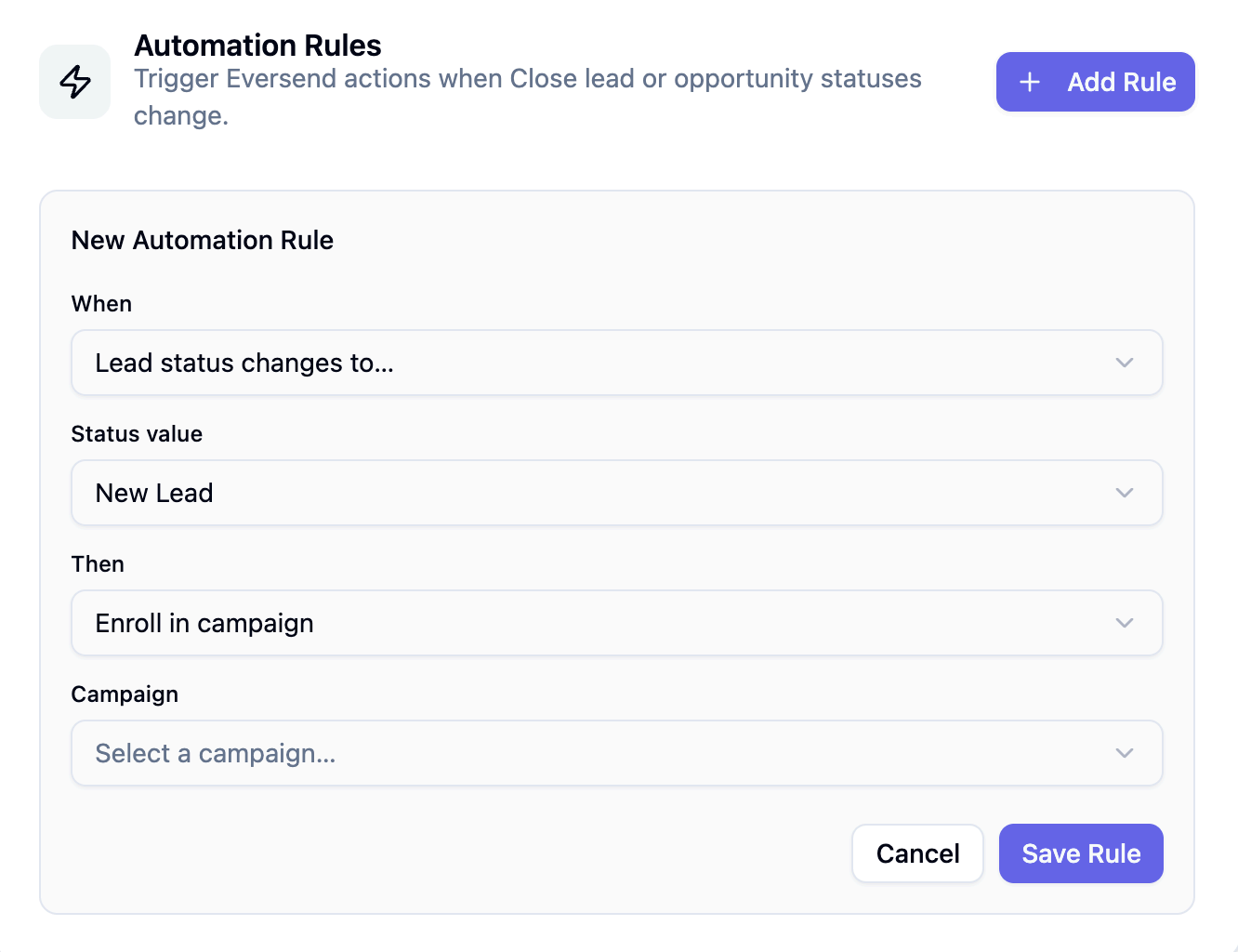
EverSend can automatically enroll leads into AI agents and campaigns based on changes that occur inside Close CRM.
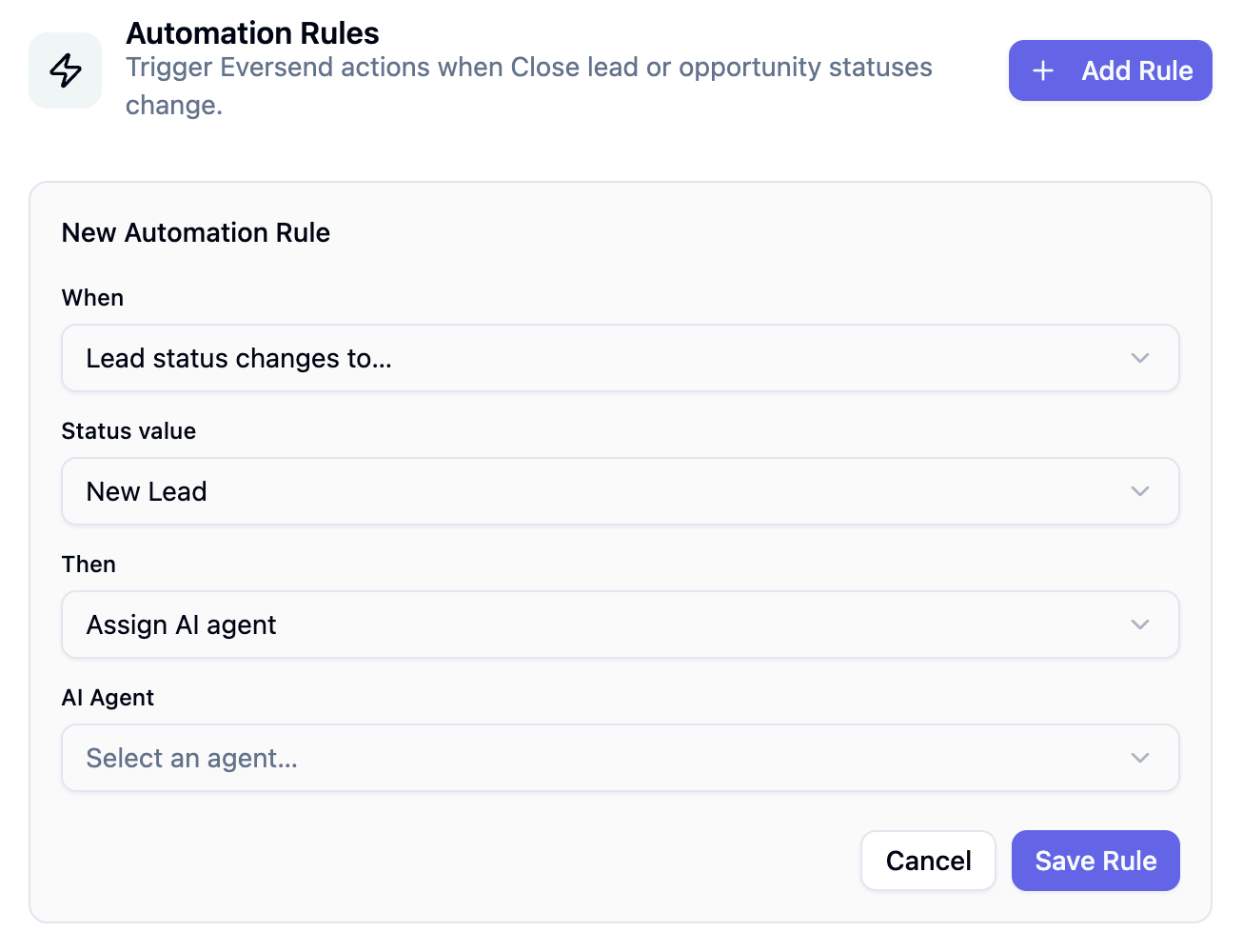
Unlike HubSpot or GoHighLevel, Close does not provide native EverSend workflow actions. Instead, EverSend monitors changes within Close and triggers automations based on the rules you configure inside EverSend.
Common trigger examples include:
- Lead status changes to Interested
- Lead status changes to Qualified
- Opportunity enters a specific stage
- Lead is added to a Smart View
- Lead ownership changes
When one of these events occurs, Close sends the update to EverSend, and EverSend evaluates your automation rules to determine what action should be taken.
All automation logic is configured inside EverSend.
Available Automation Actions
Once a trigger condition is met, EverSend can automatically perform actions such as:
Add to EverSend Campaign
Enroll a lead into a specific EverSend campaign.
Common use cases:
- New lead follow-up
- Lead nurturing
- Re-engagement campaigns
- Post-call automation
Add to EverSend AI Agent
Send a lead directly into an AI-driven conversation.
Common use cases:
- Speed-to-lead follow-up
- Qualification
- Appointment booking
- Automated objection handling
Pause EverSend AI Agent
Temporarily stop AI conversations.
Common use cases:
- Human rep takes ownership
- Lead requests follow-up later
- Opportunity enters active sales process
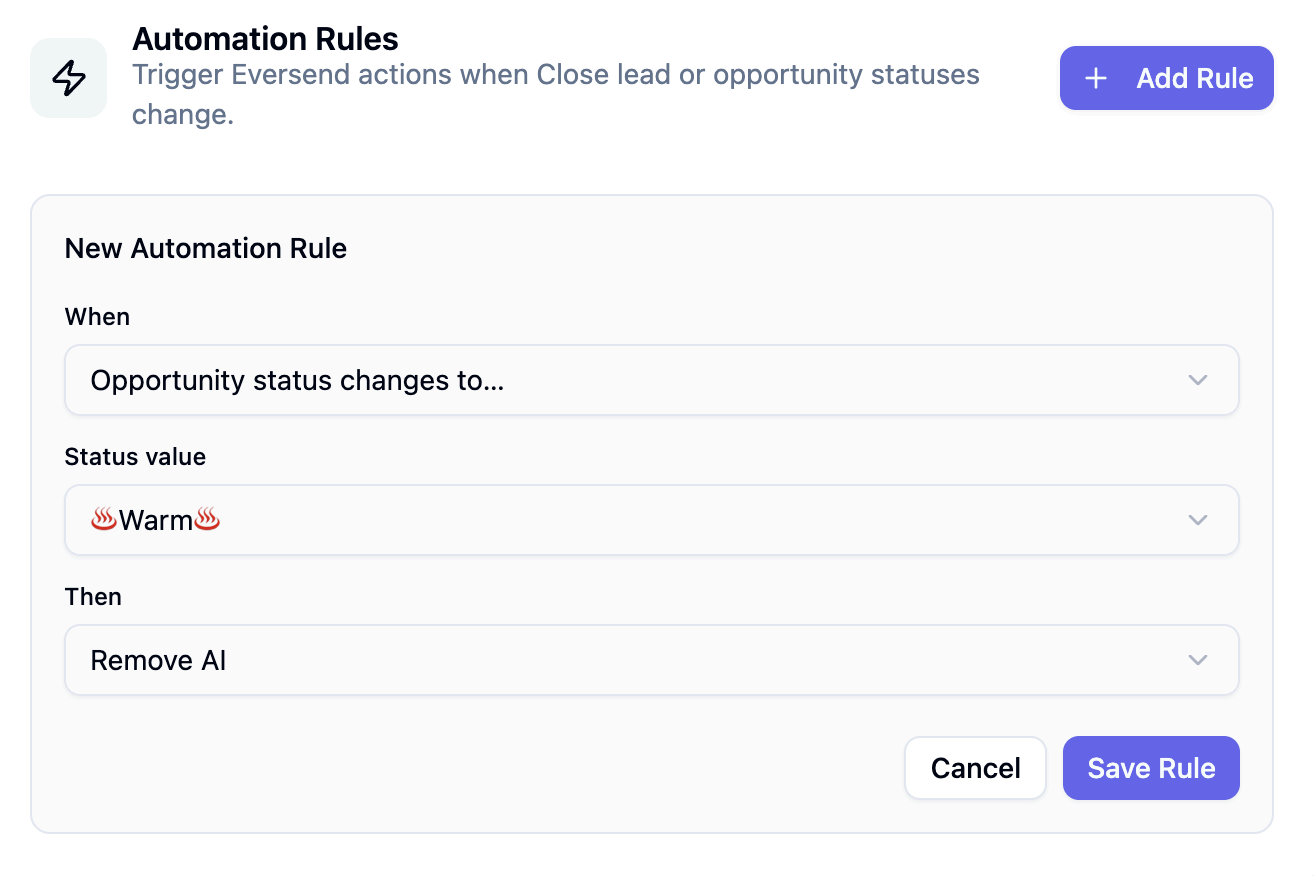
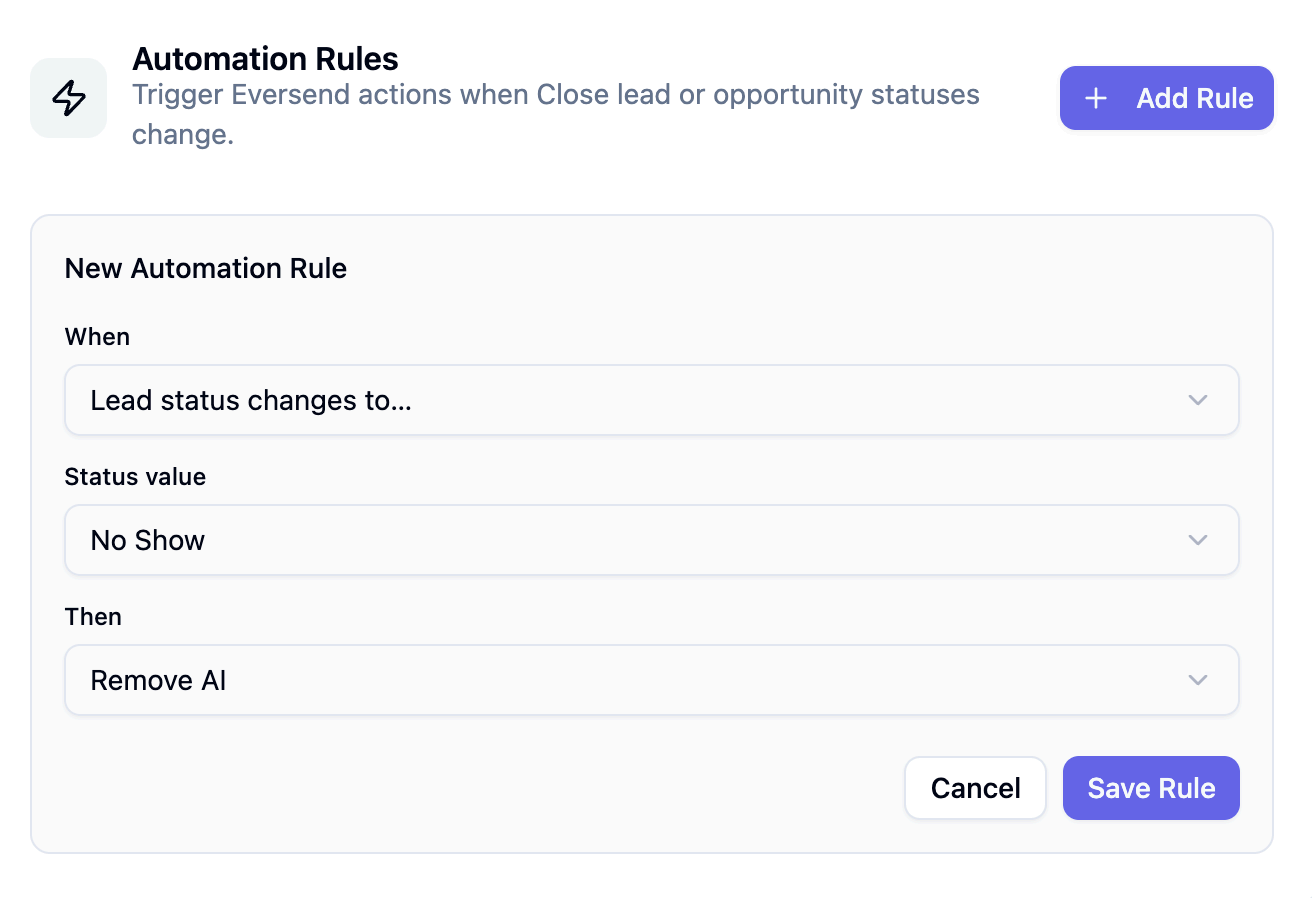
Remove from EverSend AI Agent
Completely remove a lead from AI automation.
Common use cases:
- Lead becomes unqualified
- Lead opts out
- Deal is closed
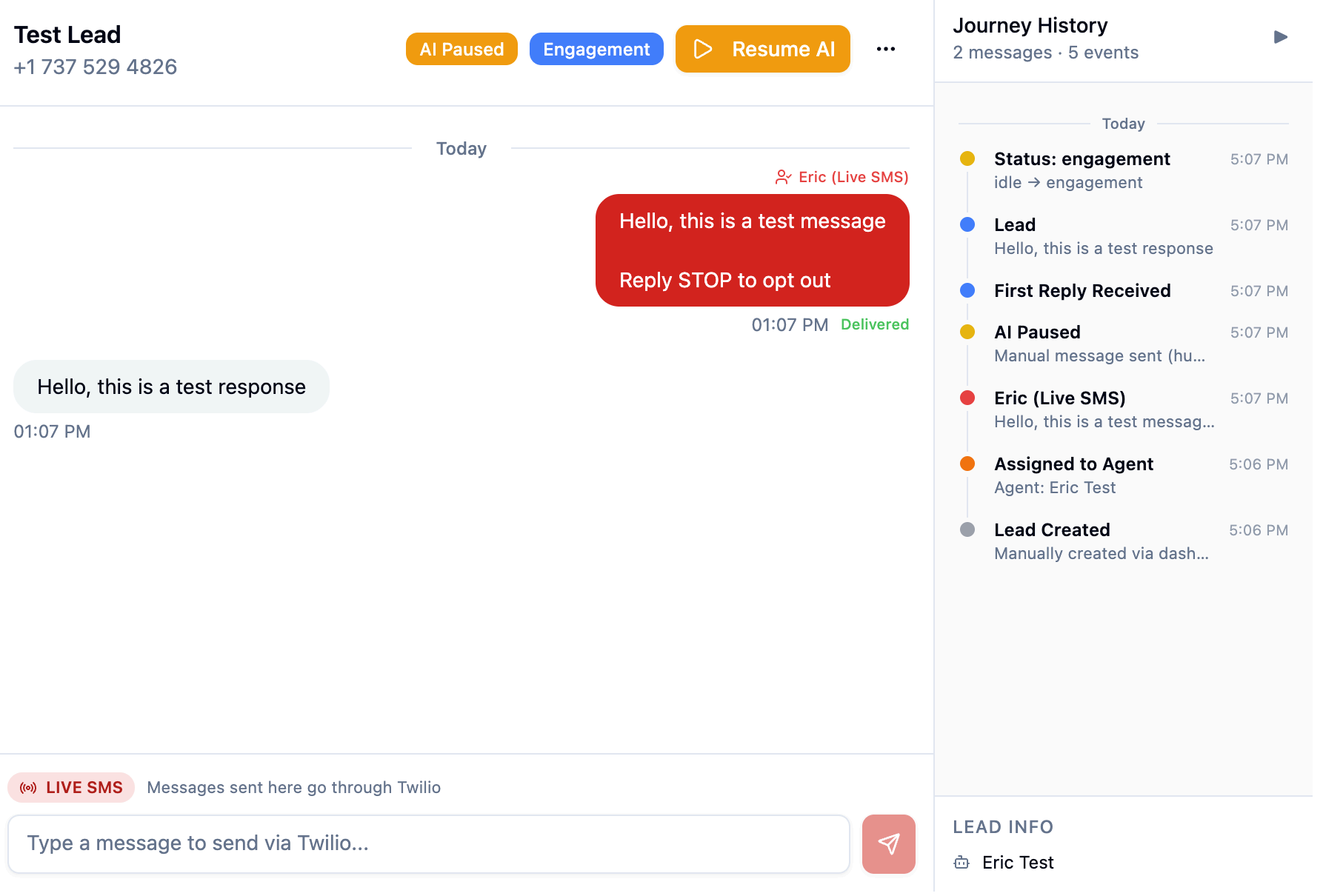
SMS Timeline Sync
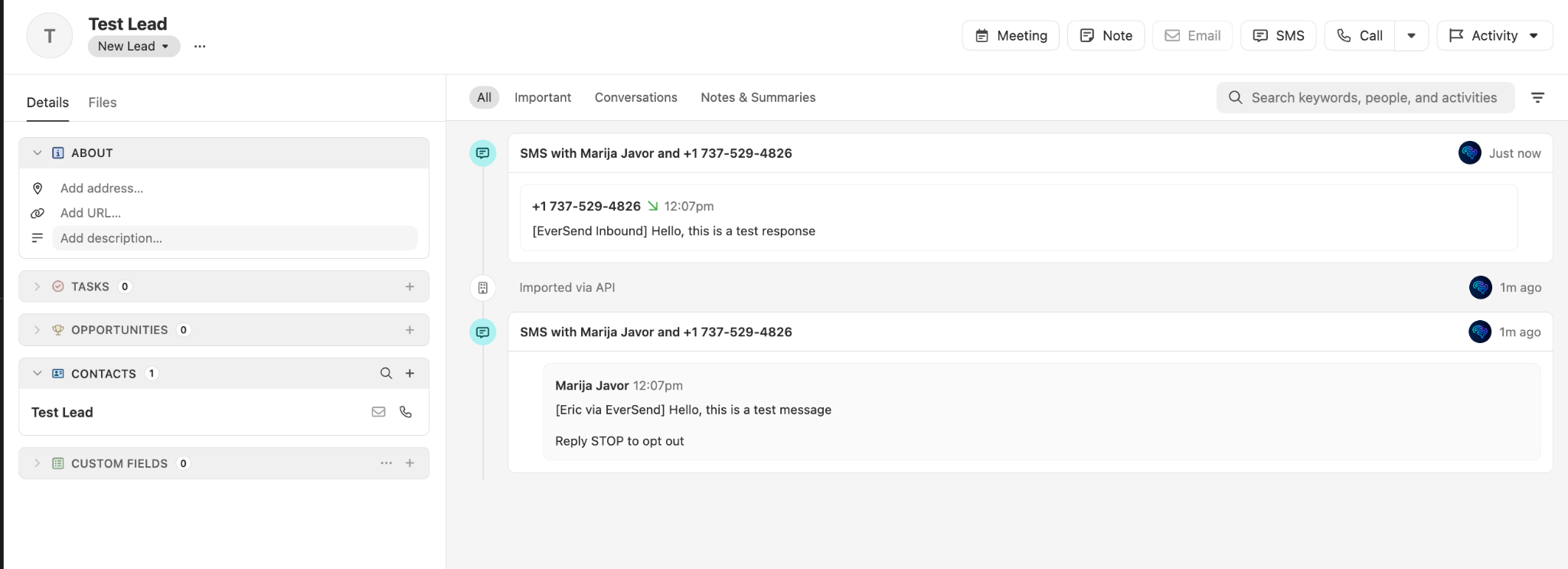
EverSend automatically writes SMS activity back into Close.
This allows sales reps to view conversation history directly inside the Close lead record.
Timeline activity may include:
- Outbound messages
- Inbound replies
- AI-generated responses
- Conversation status updates
This gives your team visibility into every interaction without switching platforms.
Appointment Booking
EverSend supports appointment booking directly from AI conversations.
When a lead books an appointment:
- A note is written to the Close lead timeline
- Booking details are recorded within the lead history
- Sales reps can review appointment activity directly from the lead record
This ensures teams maintain visibility into booked meetings without leaving Close CRM.
Best Practices
For the best experience:
- Keep lead records updated
- Ensure contacts have valid phone numbers
- Use meaningful lead statuses
- Organize Smart Views clearly
- Review automation rules regularly
- Avoid enrolling the same lead into conflicting automations
Well-structured automation rules lead to cleaner lead management and better follow-up outcomes.
Troubleshooting
Close Connection Failed
Possible causes:
- Authorization was not completed
- Close account permissions are insufficient
- Session expired during installation
Fix:
- Disconnect and reconnect the integration
- Complete the OAuth authorization process again
- Confirm account permissions
Leads Not Entering EverSend
Possible causes:
- Automation rule is not configured
- Trigger conditions are not being met
- Lead status or opportunity stage does not match automation criteria
Fix:
- Review your EverSend automation rules
- Verify trigger conditions
- Test with a sample lead
- Confirm status and stage updates are occurring inside Close
SMS Messages Not Appearing in Close
Possible causes:
- Sync delay
- Contact matching issue
- Integration disconnected
Fix:
- Confirm the lead exists in both systems
- Verify the integration is connected
- Refresh the lead timeline and retry
Appointment Notes Not Appearing
Possible causes:
- Booking sync delay
- Lead matching issue
- Integration disconnected
Fix:
- Verify the appointment was successfully booked
- Confirm the lead exists in Close
- Refresh the lead timeline
- Verify the integration remains connected
Need Help?
If you experience any issues connecting Close CRM to EverSend, contact the EverSend support team for assistance.
More guides for you
Keep exploring
EVRSEND Setup Guide
Spin up your account, connect Twilio, fund your wallet, and launch your first AI agent.
HubSpot Integration
Trigger AI follow-up the moment a HubSpot workflow enrolls a contact.
 CRM · GoHighLevel
GoHighLevel Integration
Drop EverSend actions into GHL workflows for speed-to-lead in seconds.