
Overview
The HubSpot integration allows you to send leads directly from HubSpot into EverSend and trigger AI-driven follow-up automatically.
Once connected, your team can use HubSpot workflows to:
- Add contacts to an EverSend campaign
- Add contacts to an EverSend AI agent
- Remove contacts from an AI agent
- Pause AI conversations
This allows your CRM activity to trigger real conversations automatically without manual work.
Before You Start
Before connecting HubSpot, make sure you have:
Required Access
- HubSpot Admin permissions
- Active EverSend account
You do not need to set up campaigns, agents, phone numbers, or billing before connecting. Those can all be configured later inside EverSend.
Connecting HubSpot to EverSend
Step 1: Open Integrations
Inside EverSend:
- Log in to your EverSend account
- Navigate to Integrations
- Select HubSpot
- Click Connect

Step 2: Authorize HubSpot
You will be redirected to HubSpot.
- Select the HubSpot account you want to connect
- Review requested permissions
- Click Connect App
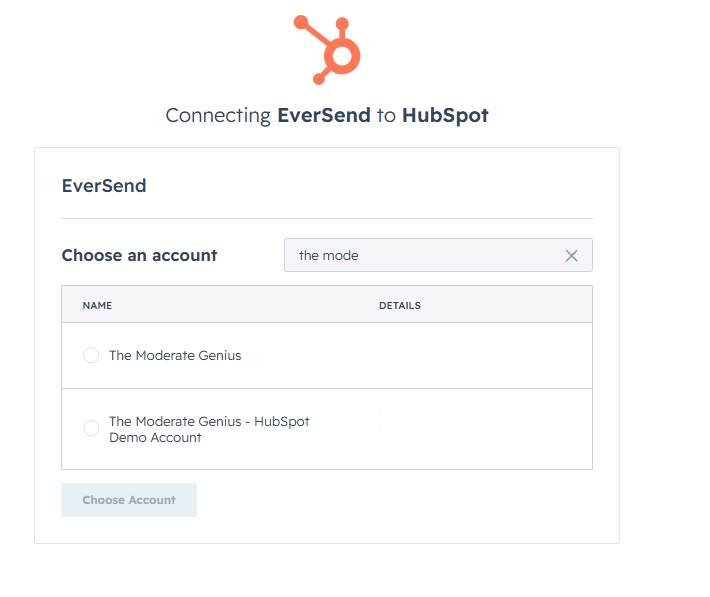
Once approved, you'll be redirected back to EverSend. Your HubSpot account is now connected.
What EverSend Syncs from HubSpot
After connection, EverSend can sync:
- Contacts
- Phone numbers
- Email addresses
This allows EverSend to identify the right contacts and enroll them in campaigns or AI agents.
Using EverSend Inside HubSpot Workflows
Once connected, EverSend actions become available directly inside HubSpot workflows.
Step 1: Open Workflows
Inside HubSpot:
- Go to Automation
- Click Workflows
- Create a new workflow or open an existing one
Step 2: Add an EverSend Action
- Click + Add Action
- Search for EverSend
You'll see available actions:
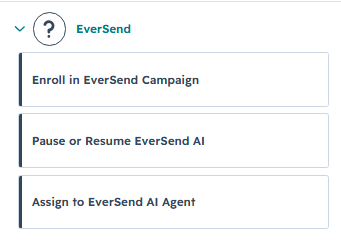
Add to EverSend Campaign
Use this when you want HubSpot contacts to enter a specific follow-up campaign.
Examples:
- New lead submits a form
- Lead moves to a pipeline stage
- Lead becomes marketing qualified
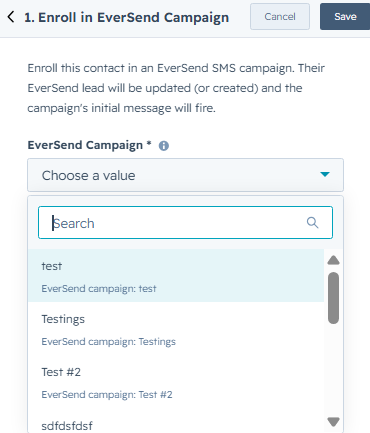
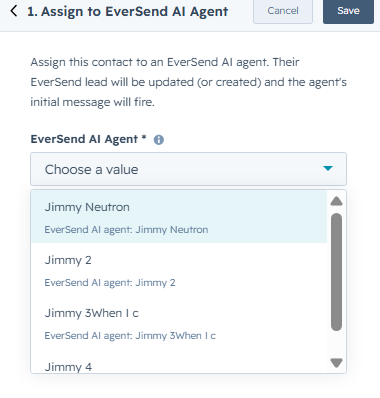
Add to EverSend AI Agent / Campaign
Use this when you want contacts to start a live AI conversation or drip campaign.
Examples:
- Inbound lead follow-up
- Speed-to-lead automation
- Appointment booking conversations
Remove from EverSend AI Agent
Use this when contacts should exit an active AI conversation.
Examples:
- Lead becomes unqualified
- Lead requests removal
- Lead is reassigned
Pause EverSend AI Agent
Use this when AI conversations should temporarily stop.
Examples:
- Human rep takes over
- Deal moves to active pipeline
- Lead requests follow-up later
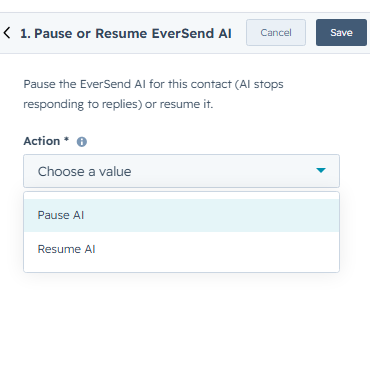
Configuring Workflow Actions
When adding an EverSend action, HubSpot will ask you to select:
- The EverSend campaign
- The EverSend AI agent
- Action behavior based on the selected workflow step
This means campaign selection and AI routing are controlled directly inside the workflow where your team already works.
How to Send an Image from HubSpot
Option 1 — Select an Image from HubSpot Files
Inside your HubSpot workflow:
- Go to Automation > Workflows
- Add the Enroll in EverSend Campaign action
- Select the EverSend campaign you want to use
- Under Image from HubSpot Files, choose an image from your HubSpot file manager
- Save and publish your workflow
When the workflow triggers, EverSend will send the selected image together with the campaign message.
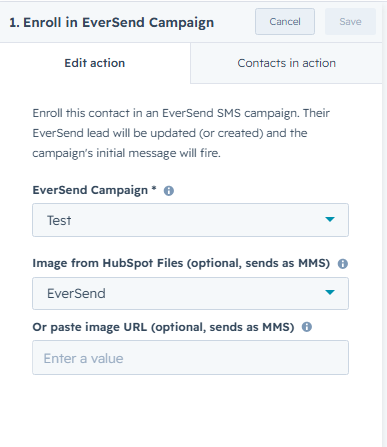
Option 2 — Use an Image URL
Instead of selecting a HubSpot file, you can paste a hosted image URL.
Inside the workflow action:
- Locate Paste image URL
- Paste the direct image URL
- Save your workflow
EverSend will use the hosted image when the campaign fires.
Common Use Cases
Speed to Lead
Trigger: New contact created in HubSpot
Action: Add to EverSend AI Agent
Result: AI starts the conversation immediately.
Nurture Follow-Up
Trigger: Contact added to a list
Action: Add to EverSend Campaign
Result: Automated follow-up begins.
Human Takeover
Trigger: Deal moves to active opportunity stage
Action: Pause EverSend AI Agent
Result: AI stops messaging so sales can take over.
Contact Disqualification
Trigger: Lead status changes to unqualified
Action: Remove from EverSend AI Agent
Result: Contact exits automation.
Troubleshooting
HubSpot Connection Fails
Most common cause:
- Missing HubSpot admin permissions
Fix:
- Log in with an admin account
- Reconnect from EverSend integrations
EverSend Actions Not Showing in HubSpot
Possible causes:
- HubSpot app not connected
- Browser session expired
- Installation incomplete
Fix:
- Reconnect HubSpot inside EverSend
- Refresh HubSpot
- Reopen the workflow builder
Contacts Not Entering EverSend
Possible causes:
- Workflow did not trigger
- Contact missing required data
- Incorrect workflow filters
Fix:
- Review workflow enrollment criteria
- Confirm contact has valid phone/email data
- Test with a sample contact
More guides for you
Keep exploring
EVRSEND Setup Guide
Spin up your account, connect Twilio, fund your wallet, and launch your first AI agent.
 CRM · GoHighLevel
GoHighLevel Integration
Drop EverSend actions into GHL workflows for speed-to-lead in seconds.
 CRM · Close
Close CRM Integration
React to lead status and opportunity changes with automated AI calling.